Layers that contain one or more objects with a defined "Composite Level" greater than zero are considered composite layers. Composite levels make it easy to define the fill rules for objects without the construction of complex polygons or geometries. Essentially objects are drawn per layer in the order of their composite level, starting with 0 and increasing to a maximum composite level of 1000. All "even" (and zero) composite levels are filled dark (ie. Paint), while "odd" composite levels are drawn clear (ie. Scratch).
To view an illustration of how composite level numbers define interiors: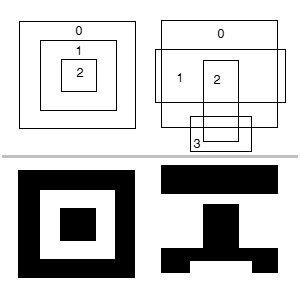
1. Select Object(s).
2. Go to menu: Edit >Properties... or view the object properties panel (located right-side of FAB 3000 editor).
3. Located Item Composite Level, and change the value from the pull-down list.
4. Click Ok (or press Apply) to update.
Note: If changes were made that are incorrect, you may Undo.
Automatically change the composite level of a group of objects, based on their interior location relative to other objects, try using Polygon De-Embedding.
1. Simply select the objects
2. Go to menu: Edit > De-Embed...
Composite Wizard (Tools):
1. Go to menu: Tools > Composite Wizard for more composite layer tools.
Was this article helpful?
That’s Great!
Thank you for your feedback
Sorry! We couldn't be helpful
Thank you for your feedback
Feedback sent
We appreciate your effort and will try to fix the article